This is one of the most common questions I get during consultations with ecommerce brands. You build out a clean welcome sequence, set your trigger list, launch your sign-up form, and then notice that subscribers are simply not receiving the first email. In most cases, the flow itself is working perfectly fine. The issue sits inside your list consent settings.
By default, Klaviyo sets every new list to double opt-in. That means when a shopper fills out your popup form, they do not enter your welcome series immediately. Klaviyo sends them a confirmation email first. If the user never opens that email or never clicks the confirmation button, they are never added to the list, which means the flow trigger never fires. For most ecommerce stores, that extra hoop destroys your conversion rate. Around 20% to 40% of genuine subscribers get lost before they ever receive your discount code.
To fix this, head into your Klaviyo account, click on Lists & Segments, and open the list connected to your sign-up form. Click into Settings on the left-hand menu, select Consent, and change the setting from Double opt-in to Single opt-in. Save your changes. From that moment forward, anyone who submits their email on your website joins the list immediately and triggers the first flow message without delay.
Re-Entry Settings and Trigger Filter Restrictions
When an email is skipped in an abandoned cart, browse abandonment, or post-purchase flow, re-entry settings are often the root cause. Klaviyo lets you control how often a profile can move through any given automation. If those rules are too strict, people who take the qualifying action get blocked at the front door.
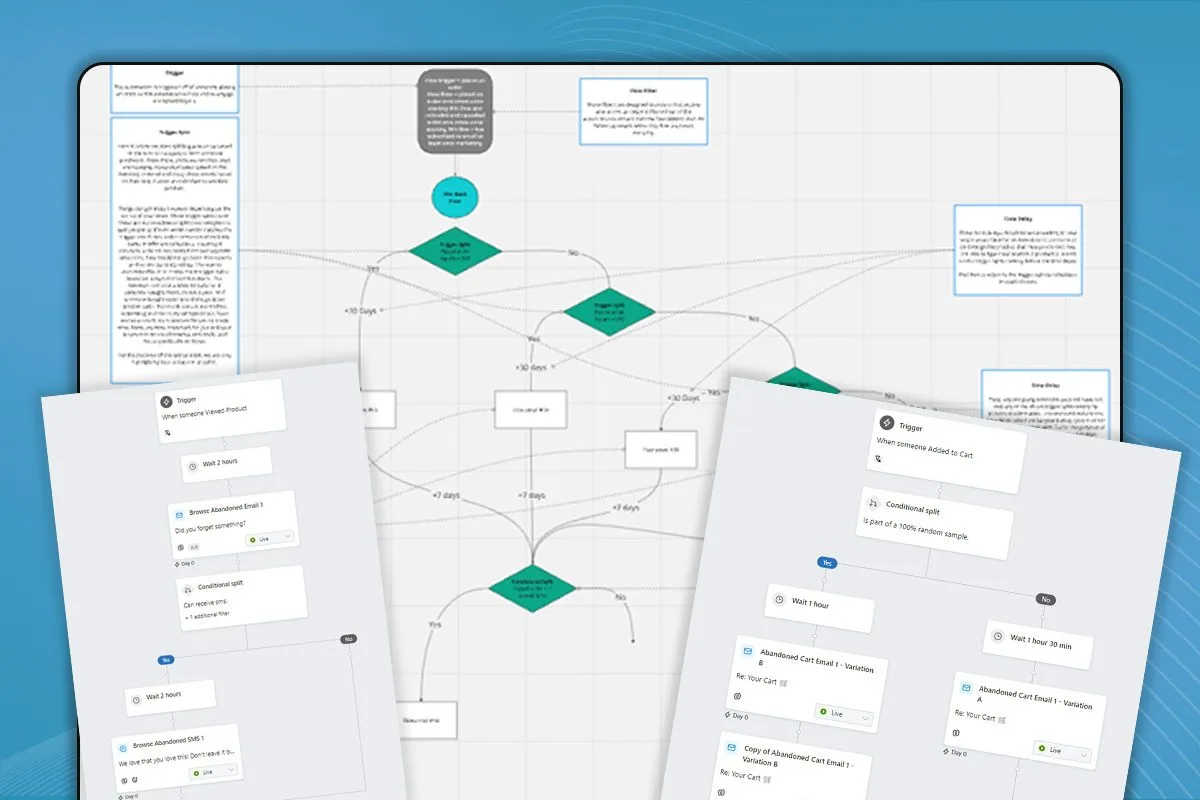
Open your flow and look at the trigger box at the very top. You will see your re-entry criteria with three main options. You can set it to allow re-entry, allow re-entry after a specific time period (such as 30 days or 90 days), or prevent re-entry entirely. If you have an abandoned checkout flow set to no re-entry, a customer who abandons their cart in January can never receive an abandoned cart email again in November. That is a mistake. For abandoned carts and browse abandonment, allow profiles to re-enter after a sensible window (often 7 to 14 days) so returning shoppers still get nudged.
Right beside re-entry, you have trigger filters. Trigger filters evaluate the specific event that initiated the flow. For example, on a Started Checkout event, you might add a trigger filter specifying that Item equals a specific product name. If someone starts checkout with a different product in their cart, Klaviyo evaluates the trigger filter, sees that the conditions do not match, and drops them. That is not a bug. The system is doing exactly what you told it to do.
Profile Filters and Flow Exclusions
Profile filters (also known as flow filters) operate differently from trigger filters. While a trigger filter inspects the specific event data at the moment it happens, a profile filter inspects the customer profile throughout their entire journey down the flow sequence.
In a standard abandoned checkout flow, you typically have two essential profile filters: Person can receive email marketing, and Has Placed Order zero times since starting this flow. If a customer starts checkout, enters the flow, waits through your initial one-hour delay, and buys the product 20 minutes before email one goes out, Klaviyo checks the profile filter again right before sending. It sees the placed order event, notes that they no longer qualify, and skips the email.
This is intentional protection. You do not want to send a 10% discount reminder to someone who already paid full price five minutes ago. However, problems arise when brands stack unnecessary profile filters. If you add conflicting segments, outdated engagement filters, or overly restrictive tags, you will systematically skip valid customers. Keep your flow filters minimal and focused on conversion status and channel consent.
Smart Sending Conflicts Across Active Automations
Another major reason Klaviyo skips flow emails is Smart Sending. This is a built-in deliverability feature designed to prevent your subscribers from being bombarded with multiple emails in a short window. If Smart Sending is turned on for an email, Klaviyo checks whether the recipient received another campaign or flow message within your account-level smart sending window (which defaults to 16 hours).
Imagine a customer receives your regular Thursday promotional campaign at 10:00 AM. At 11:30 AM, they click a link in that campaign, browse your store, add an item to their cart, and leave. Your abandoned checkout flow triggers. An hour later, the flow attempts to deliver email one. If Smart Sending is enabled on that flow email, Klaviyo looks at the profile, sees an email was delivered less than two hours ago, and skips the flow email entirely.
For critical, high-intent transactional flows, Smart Sending should almost always be turned off. Abandoned checkout, cart abandonment, and customer service transactional updates should fire regardless of when your last broadcast campaign was sent. Leave Smart Sending active on broader nurture flows or low-urgency campaigns, but turn it off for your highest-converting automations.
How to Diagnose Skipped Emails in Recipient Activity
You do not need to guess why someone was skipped. Klaviyo logs the exact technical reason for every single skipped profile inside your email analytics, provided you know where to look.
Here is the exact diagnostic workflow I use when auditing client accounts:
Open the flow and click the Show Analytics toggle in the top control bar to overlay performance metrics onto the canvas.
Select the specific email node you want to inspect, then click View Details in the left-hand sidebar.
Click on the Recipient Activity tab near the top of the analytics screen.
Click the Skipped tab directly underneath the graph.
Adjust the date range filter from Week-to-date to Last 90 Days or All Time to see meaningful volume.
Once you are on that screen, Klaviyo gives you a line-by-line breakdown of every skipped subscriber alongside a specific failed reason. You will see clear tags like Failed Filter: Has Placed Order 0 times since starting this flow, Skipped: Smart Sending, or Person Not Subscribed. If 50 people were skipped because they placed an order, your flow is converting. If 50 people were skipped due to Smart Sending, you know you need to toggle that setting off immediately.
Final Thoughts
When flow emails do not send, it is almost never a technical glitch with Klaviyo. It is almost always a restrictive profile filter, an accidental double opt-in setting on your sign-up list, or a Smart Sending rule blocking your highest-intent messages. Use the Recipient Activity report to find the exact failed condition, adjust the setting, and let your automations do their job.
If you want an experienced set of eyes to review your flow setup, identify deliverability bottlenecks, and unlock hidden revenue, book a review through our Klaviyo account audit.
To see what this looks like for a real brand, read how Liquified RV added 15,629 new email subscribers and 10,334 new SMS subscribers in four months in our Liquified RV case study.
Let's talk
Ready to grow your email revenue?
Book a free audit and we'll show you exactly where the revenue is hiding.